Activity 18: Research HTML

Using semantic HTML is essential for creating well-structured web pages that are accessible and optimized for search engines. By incorporating meaningful tags like <header>, <footer>, <article>, <section>, and <nav>, developers can improve both user experience and code maintainability.
1. Headings
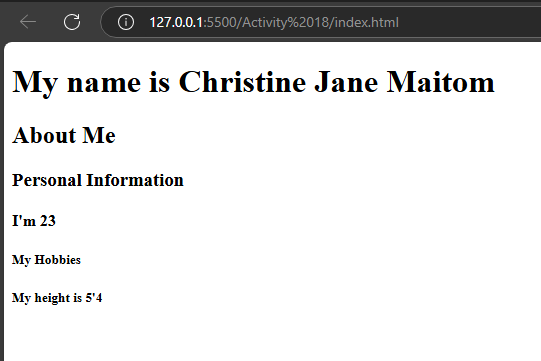
HTML provides six levels of headings, from <h1> (most important) to <h6> (least important). These helps structure your content and make it easier to read.
<header>
          <h1>My name is Christine Jane Maitom</h1>
          <h2>About Me</h2>
          <h3>Personal Information</h3>
          <h4>I'm 23</h4>
          <h5>My Hobbies</h5>
          <h5>My height is 5'4</h5>
      </header>
2. Paragraphs
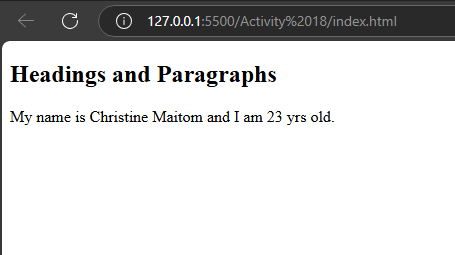
Section 1:<h2>: A level 2 heading, used to represent a section title.
<p>: Paragraph elements, used to represent blocks of text.
<section id="section1">
          <article>
              <h2>Headings and Paragraphs</h2>
              <p>My name is Christine Maitom and I am 23 yrs old.</p>

          </article>
      </section>
3. Lists
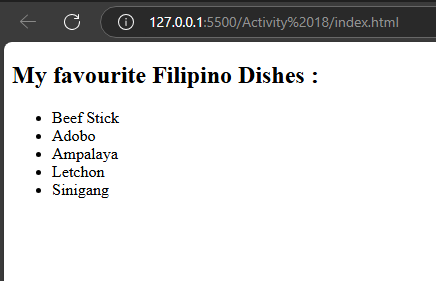
Unordered List (<ul>)
This creates a bullet-point list:
 <h2> My favourite Filipino Dishes :</h2>
        <ul>
            <li>Beef Stick</li>
            <li>Adobo</li>
            <li>Ampalaya</li>
            <li>Letchon</li>
            <li>Sinigang</li>
        </ul>
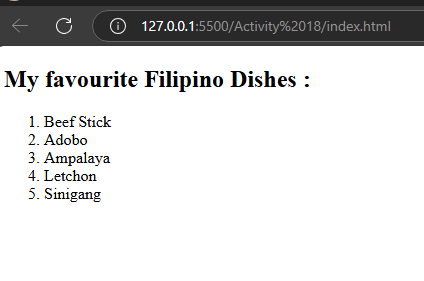
Ordered List (<ol>)
This creates a numbered list:
 <h2> My favourite Filipino Dishes :</h2>
        <ol>
            <li>Beef Stick</li>
            <li>Adobo</li>
            <li>Ampalaya</li>
            <li>Letchon</li>
            <li>Sinigang</li>
        </ol>
4. Table
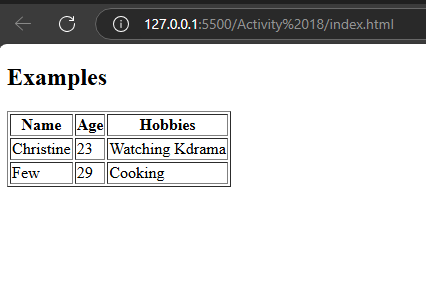
<tr>: Table row element, used to define rows in the table.
<th>: Table header element, typically used in the first row of a table to define the header cells.
<td>: Table data element, used to define the individual cells in a table row.
<article>
          <h2>Examples</h2>
          <table border="1">
              <tr>
                  <th>Name</th>
                  <th>Age</th>
                  <th>Hobbies</th>
              </tr>
              <tr>
                  <td>Christine</td>
                  <td>23</td>
                  <td>Watching Kdrama</td>
              </tr>
              <tr>
                  <td>Few</td>
                  <td>29</td>
                  <td>Cooking</td>
              </tr>
          </table>
      </article>
5. Form
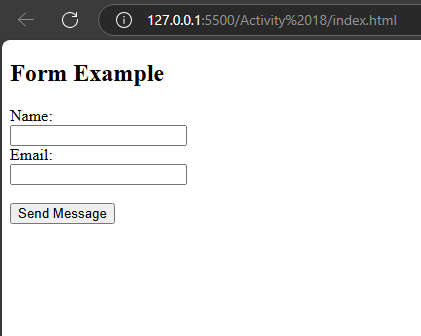
Form and Div Example
<h2>: A level 2 heading introducing the form and div example.
<div>: A container used to group elements, in this case, the form.
<form>: Creates a form for user input.
<input>: Defines input fields for user data
type="submit" for the submit button
<article>
          <h2>Form  Example</h2>
          <div>
              <form>
                  <label for="name">Name:</label><br>
                  <input type="text" id="name" name="name"><br>
                  <label for="email">Email:</label><br>
                  <input type="email" id="email" name="email"><br><br>
                  <input type="submit" value="Send Message">

              </form>
          </div>
      </article>
6. Div
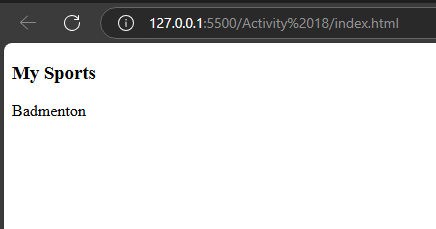
The <div> tag is a block-level container used to group content:
<div>
          <h3>My Sports</h3>
          <p>Badmenton</p>
      </div>
7. Images
To display an image, use the <img> tag:
<h1>Christine Image</h1>
 <img src="Christine.jpg" alt="Sample Image" width="500">

8. Canvas
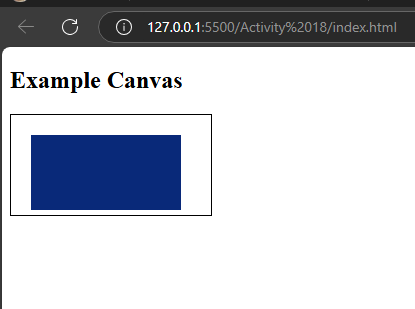
<h2>: A heading introducing the canvas example.
<canvas>: A canvas element where 2D or 3D shapes can be drawn using JavaScript.
<article>
          <h2> Example Canvas</h2>
          <canvas id="myCanvas" width="200" height="100" style="border:1px solid #000000;"></canvas>
          <script>
              var c = document.getElementById("myCanvas");
              var ctx = c.getContext("2d");
              ctx.fillStyle = "#092979";
              ctx.fillRect(20, 20, 150, 75);
          </script>
      </article>
9. Video
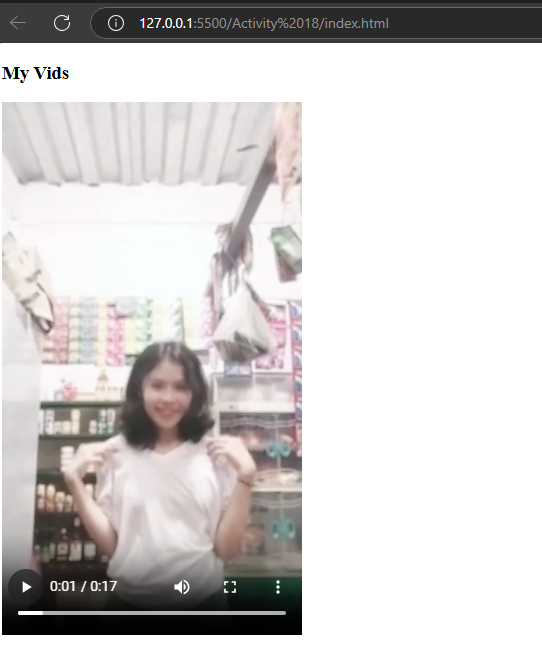
<h3>: A heading introducing the video example.
<video>: Embeds a video player. The controls attribute allows the user to control playback (e.g., play/pause).
 <article>
          <h3>My Vids </h3>
          <video src="Jane.mp4" width="300" controls></video>
          </article>
10. YouTube
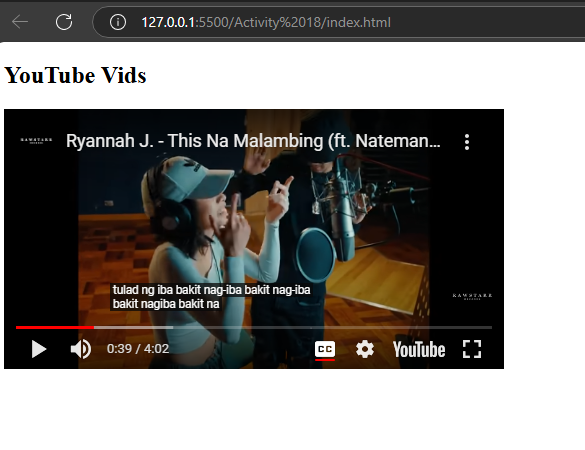
<iframe>: Embeds the YouTube video using the src attribute to specify the video link.
 <h2>YouTube Vids</h2>
     <iframe width="500" height="260" src="https://www.youtube.com/embed/Oh9f3SV6xh8?si=JO3G1bCFSzpsQCPJ" title="YouTube video player" frameborder="0" allow="accelerometer; autoplay; clipboard-write; encrypted-media; gyroscope; picture-in-picture; web-share" referrerpolicy="strict-origin-when-cross-origin" allowfullscreen></iframe>
11. Drag and Drop
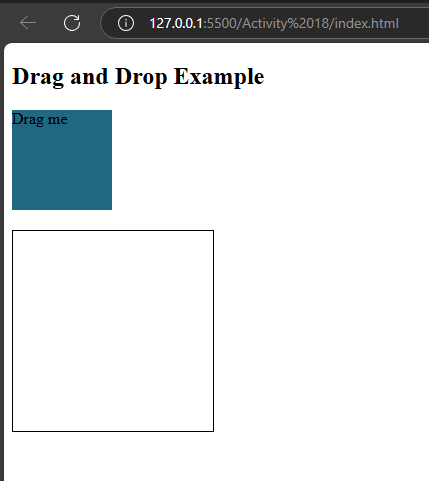
<h2>: A heading introducing the drag and drop example.<div>: Twodivelements are used here:The first
div(id="drag1") is draggable (draggable="true") and uses theondragstartevent to trigger thedragfunction.The second
div(id="dropZone") is the drop zone where the item can be dropped. It usesondropandondragoverevents for handling drag and drop functionality.<script>: Contains JavaScript that defines functions for handling drag (drag), drop (drop), and allowing drop (allowDrop) events.
<article>
          <h2>Drag and Drop Example</h2>
          <div id="drag1" draggable="true" ondragstart="drag(event)" style="width:100px;height:100px;background-color:rgb(32, 104, 128);">Drag me</div>
          <div id="dropZone" ondrop="drop(event)" ondragover="allowDrop(event)" style="width:200px;height:200px;border:1px solid black;margin-top:20px;"></div>

          <script>
              function allowDrop(ev) {
                  ev.preventDefault();
              }

              function drag(ev) {
                  ev.dataTransfer.setData("text", ev.target.id);
              }

              function drop(ev) {
                  ev.preventDefault();
                  var data = ev.dataTransfer.getData("text");
                  ev.target.appendChild(document.getElementById(data));
              }
          </script>
      </article>
12. Semantic HTML
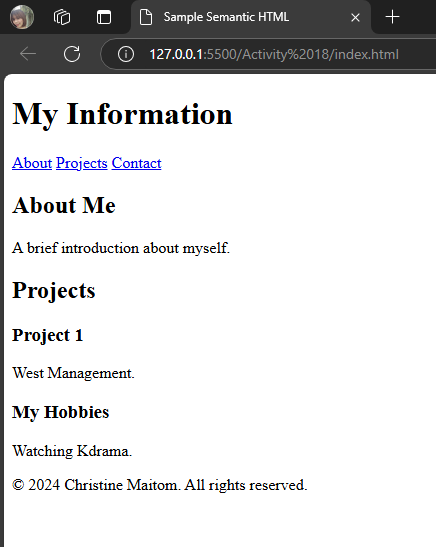
Semantic HTML refers to the use of HTML5 elements that convey meaning about the content they wrap. These elements describe the purpose and structure of the content more clearly both to the browser.
<header>
<h1>My Information</h1>
<nav>
<a href="#about">About</a>
<a href="#projects">Projects</a>
<a href="#contact">Contact</a>
</nav>
</header>
<main>
<section id="about">
<h2>About Me</h2>
<p>A brief introduction about myself.</p>
</section>
<section id="projects">
<h2>Projects</h2>
<article>
<h3>Project 1</h3>
<p>West Management.</p>
</article>
</section>
<aside>
<h3>My Hobbies</h3>
<p>Watching Kdrama.</p>
</aside>
</main>
<footer>
<p>© 2024 Christine Maitom. All rights reserved.</p>
</footer>